Stamp Maker in 5 minutes: a guided tour
New to Stamp Maker? This guide shows what each part does and walks you through making and downloading your first seal. Everything runs in your browser — your designs and files never leave your device.
What Stamp Maker gives you
Stamp Maker is four connected tools under one roof. You can start from a ready-made template, design a seal from a blank plate, drop a finished seal onto a PDF, or clean up a photo of a physical stamp.
- Templates — 100+ ready seals across 15 categories. Open one, change the wording, download.
- Editor (Create) — a layer-based canvas for rings, circular text, lines, ornaments, logos, ink colour and aging.
- Stamp PDF — place a seal image on any PDF page, resize, rotate, and apply it to every page.
- Tools — clean, extract, crop, resize, rotate or add a background to a scanned stamp image.
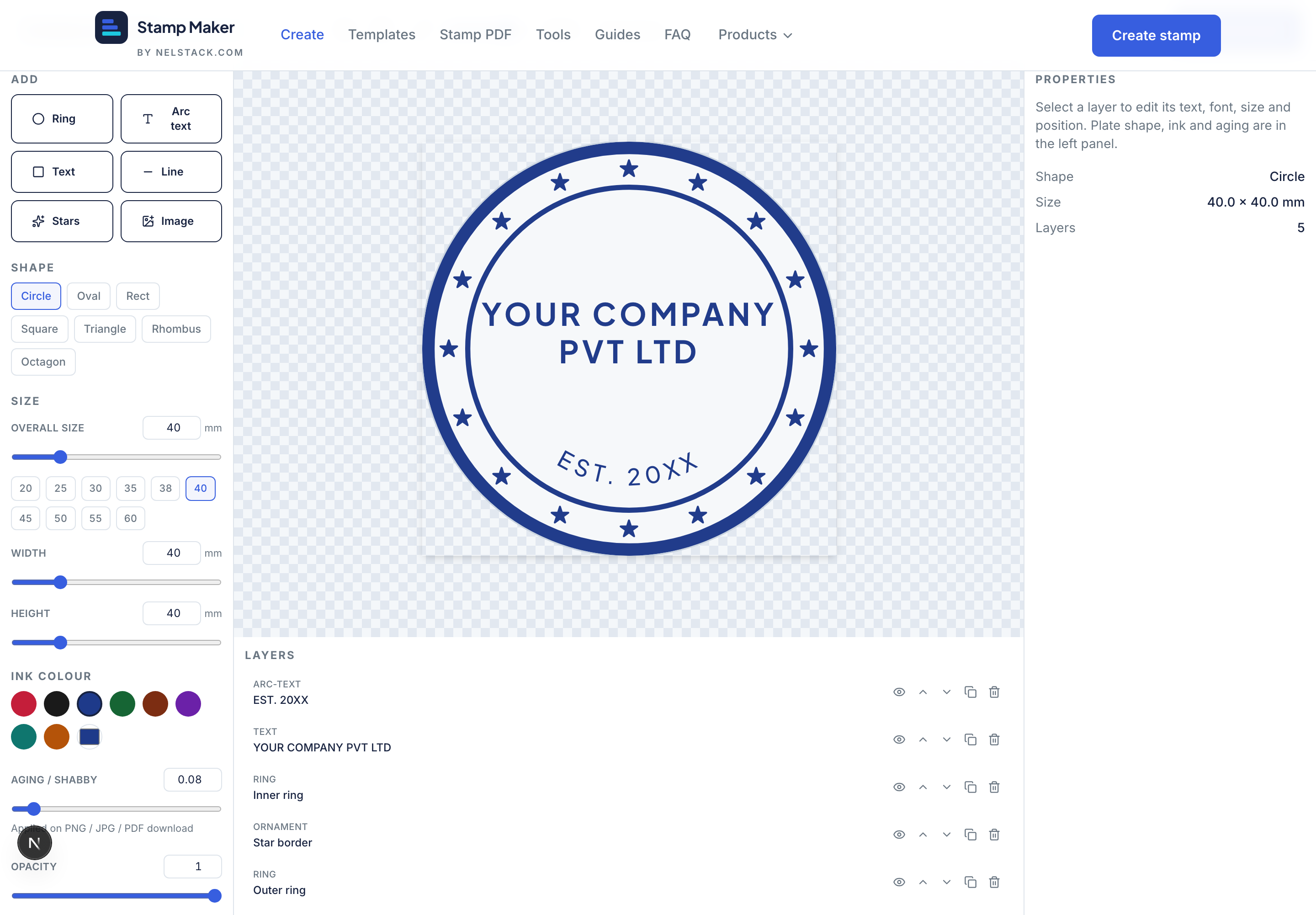
The three-pane editor
- Left — build the stamp: pick a plate shape (circle, oval, rectangle, octagon and more) and add layers (ring, arc text, straight text, line, ornament, logo).
- Centre — canvas: your live preview. Zoom with the slider or press Fit to view to recentre.
- Right — inspector: every setting for the layer you selected — text, font, size, spacing, angle and colour. Below it, the Layers panel lets you reorder or hide layers.
Toolbar shortcuts
The top toolbar has Undo/Redo, Reset (back to how the stamp started), New (blank plate), Fit to view, zoom, and the Download button. Undo is Ctrl/Cmd + Z.
Make your first stamp
- 1
Open a template
Go to Templates, pick something close to what you need — for a company seal, the Company & Corporate category is a good start — and choose “Customise this template”. It opens in the editor.
- 2
Change the wording
Click the top curved text to select it, then edit the text in the right inspector. Do the same for the bottom line and the centre text. The preview updates as you type.
- 3
Set ink colour and size
Pick an ink colour (traditional seals are blue, red or black) and set the plate size in millimetres — 38–42 mm is typical for a round company seal.
- 4
Download
Press Download, choose PNG (transparent, best for documents) at 2× or 3× scale, and save. That is your finished stamp.
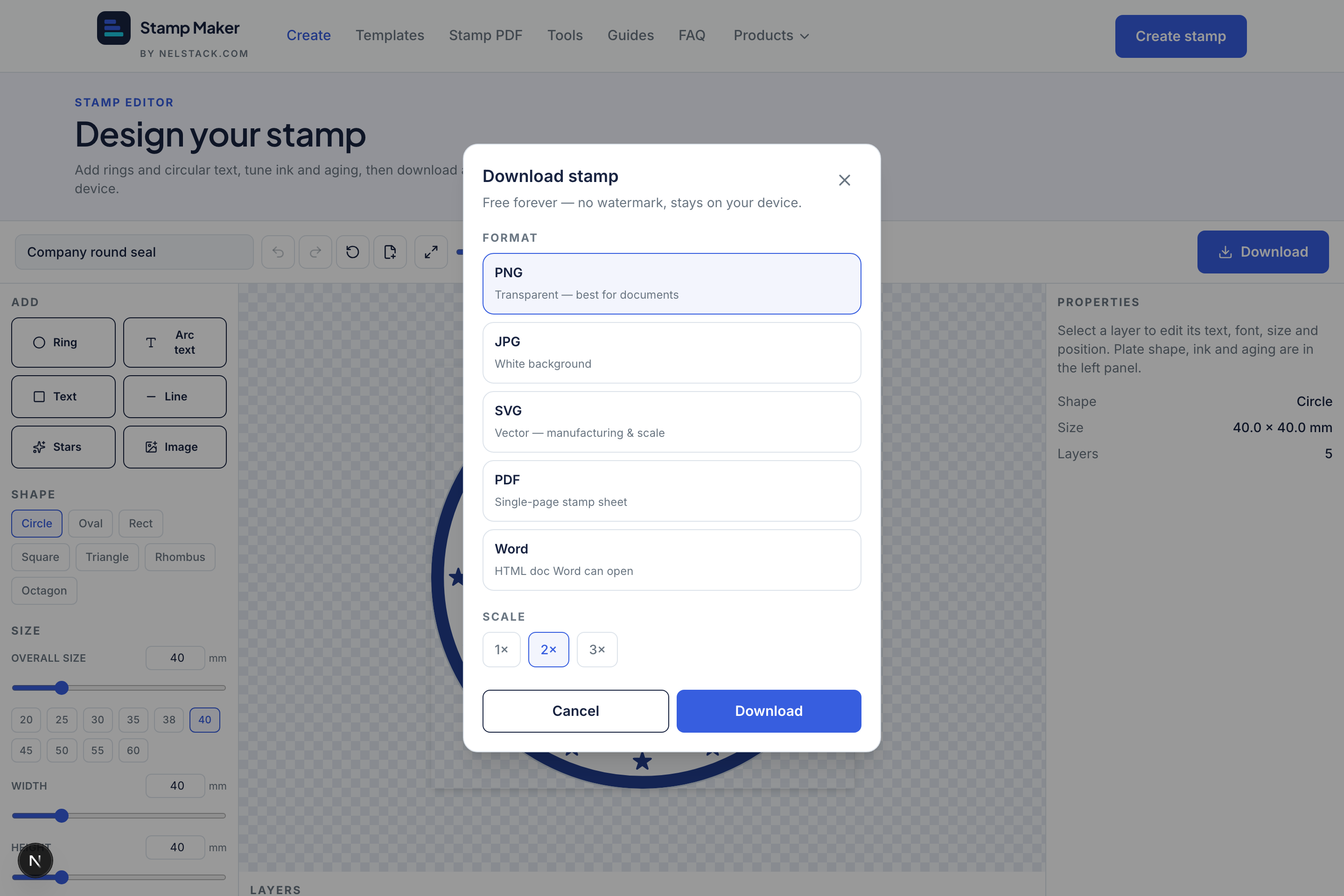
Export as transparent PNG for documents, or SVG if a stamp maker will cut a physical plate.
Note
Nelstack makes digital stamp layouts. It is not a rubber-stamp manufacturer or an authority for official seals — always follow your organisation’s rules for real seals.
Where to go next
Want to build from scratch instead of a template? Follow the simple-seal walkthrough. Ready for dual rings, stars and a logo? Jump to the complex build. To put a finished seal onto paperwork, see Stamp a PDF.
Frequently asked questions
Is Stamp Maker free?
Yes. Design, customise templates and download PNG or SVG with no signup and no watermark.
Does my stamp upload to a server?
No. Editing and exports run in your browser — designs stay on your device.
Can I stamp a PDF with a seal I made?
Yes. Download a transparent PNG, then open Stamp PDF to place, resize and rotate it on your document.
Keep learning
- Create a simple round company seal from scratchStep-by-step: build a single-ring round company seal from scratch with curved text, centre line, ink colour and transparent PNG export.
- Find a template and customise itBrowse 100+ free stamp templates across 15 categories. Open any seal, edit text and ink, then download PNG or SVG privately.
- Stamp a PDF: place, resize, rotate and apply to every pageUpload a PDF and seal image, place and rotate the stamp, apply it to every page, and download — privately in your browser.