How to sign a PDF online free — complete Sign PDF walkthrough
Sign PDF is the end-to-end document tool: open a PDF privately, place every field you need, create or upload signatures, then download a flattened signed file. This walkthrough covers the full flow; deeper field, capture and placement guides are linked at the end.
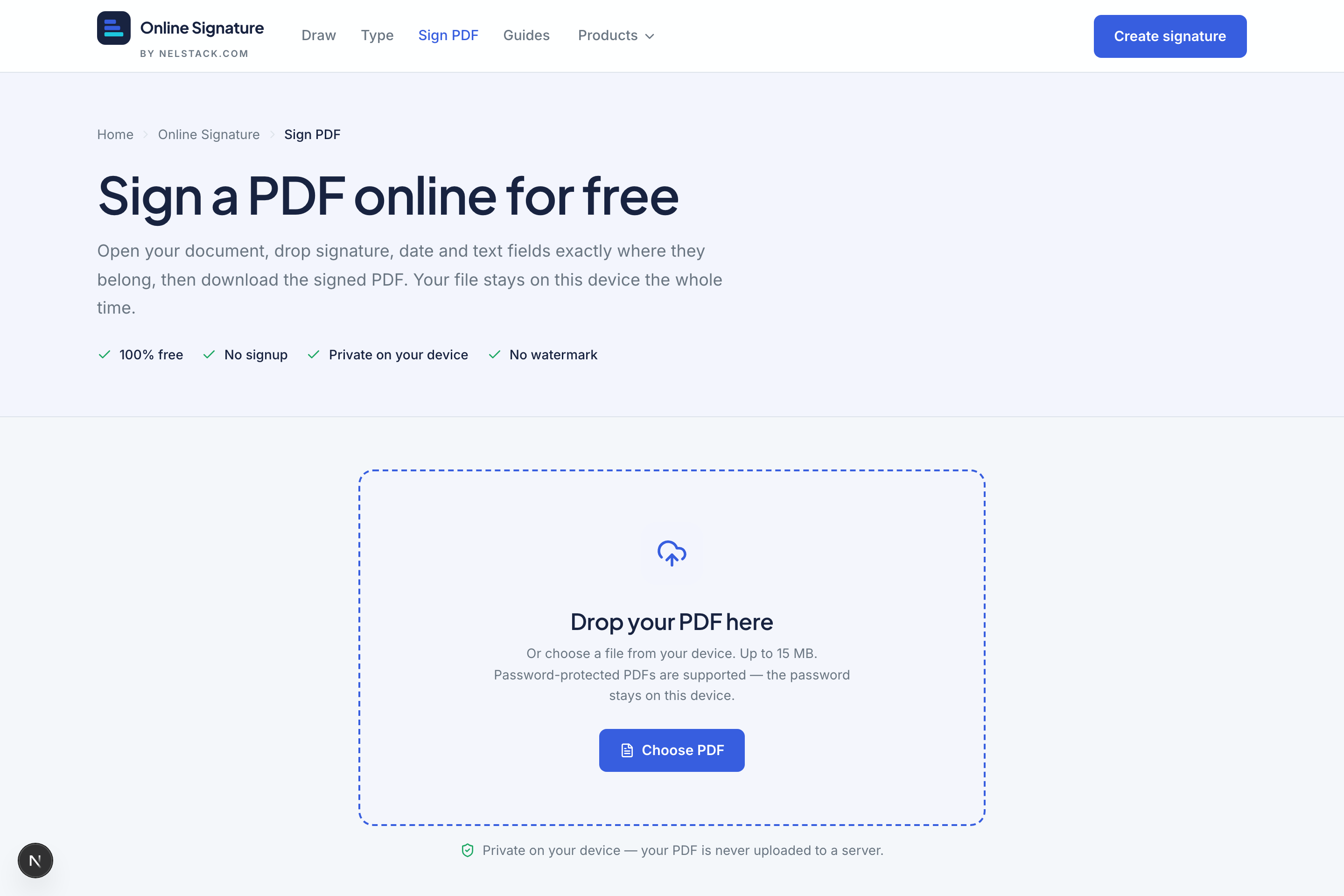
Sign PDF limits and privacy
- Max file size
- 15 MB
- Max pages
- 30
- Formats
- PDF only
- Privacy
- Rendered and signed on-device — not uploaded to Nelstack servers
- Output
- Flattened signed PDF (fields become permanent page content)
End-to-end flow
- 1
Upload or drop your PDF
Use Choose PDF or drag the file onto the dropzone. Password-protected files ask for the password before pages appear.
- 2
Learn the workspace
Left: Fields and Pages tabs. Centre: the active page. Right: properties for the selected field. Top: Undo, Clear all, zoom and Download signed PDF.
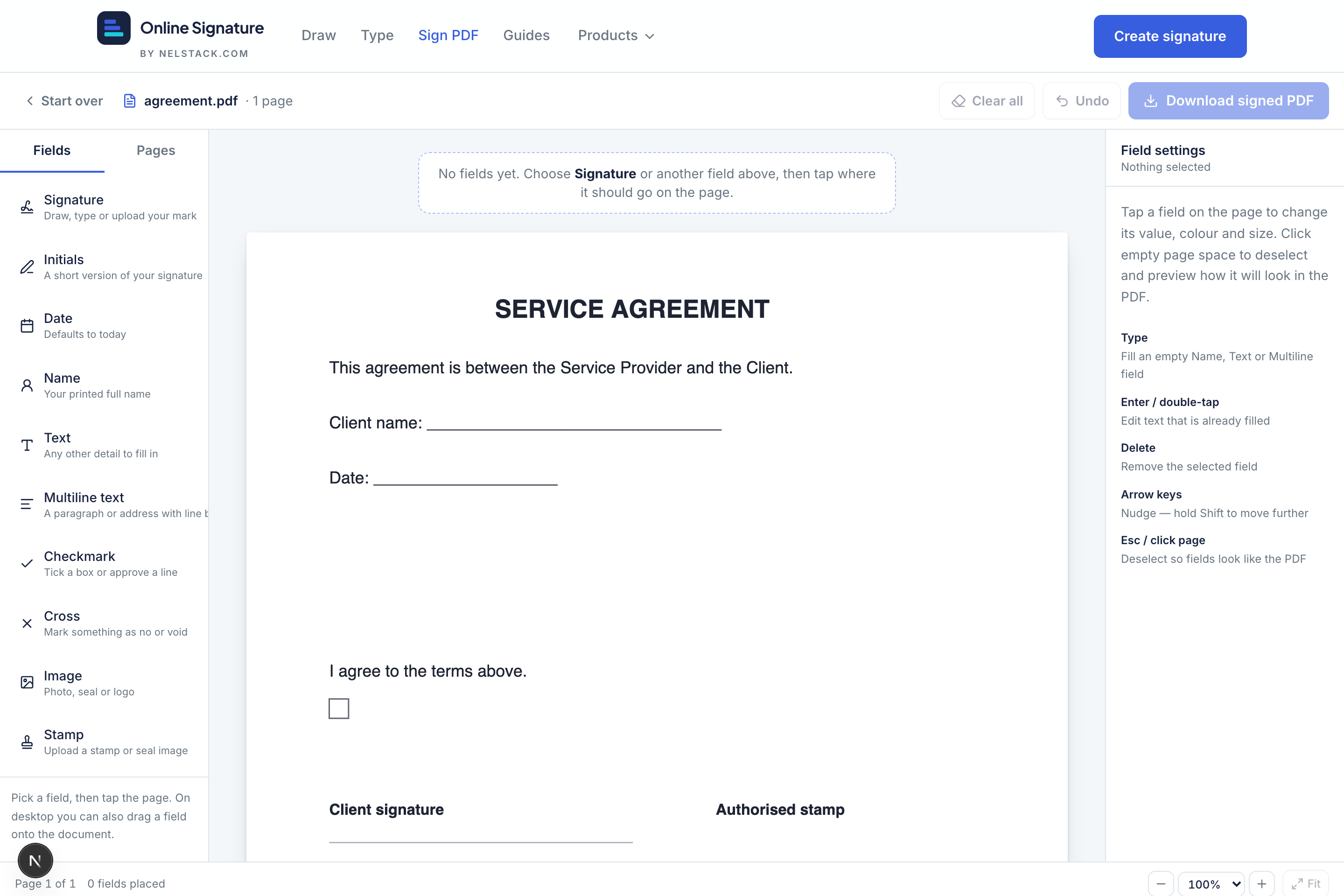
Arm a field type on the left, then click the page to place it. - 3
Place a signature
Click Signature in the sidebar (or drag it onto the page). The capture modal opens so you can Type, Draw or Upload your mark — or reuse a saved signature.
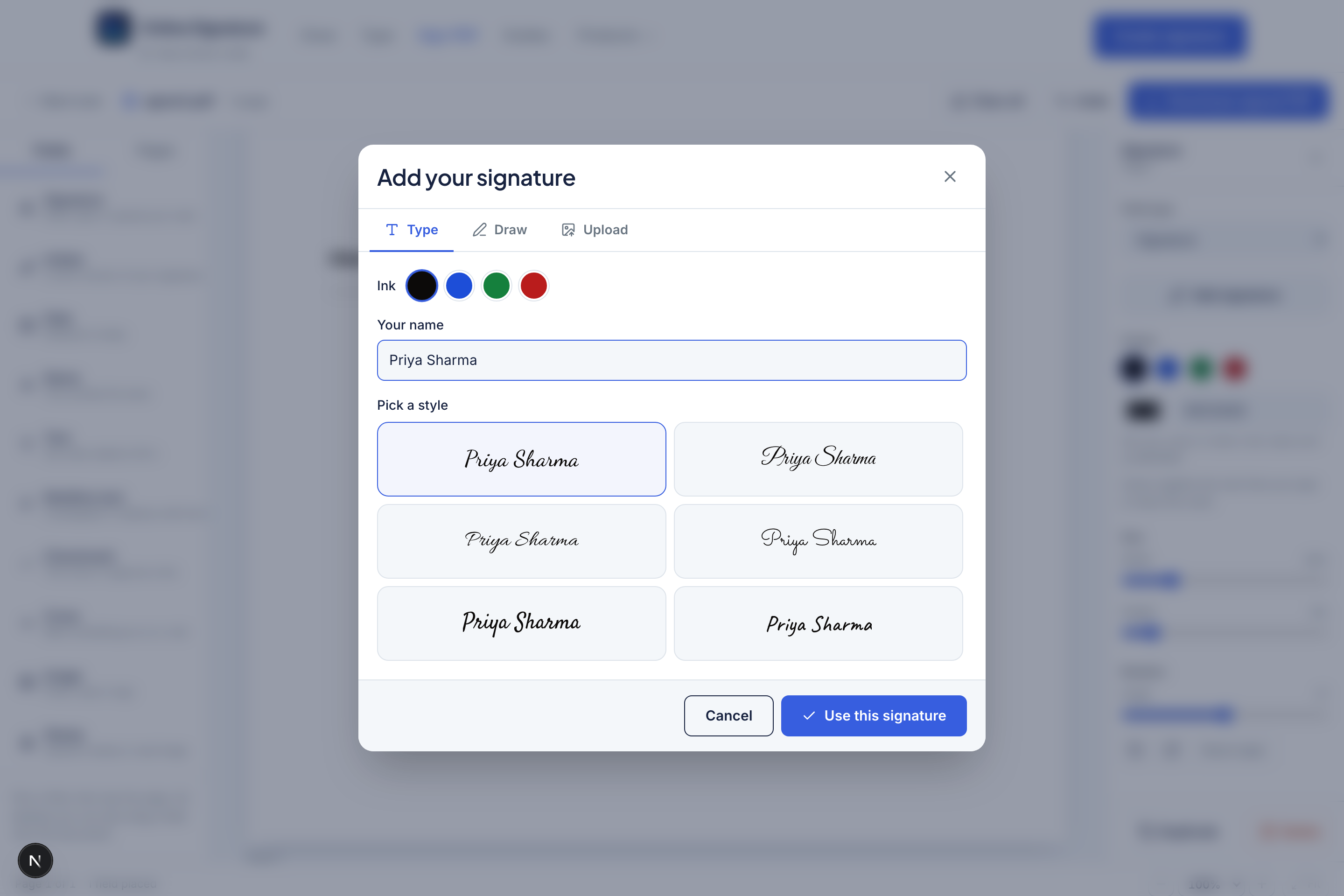
Capture once; saved signatures appear for later documents on this device. - 4
Add date, name and other fields
Place Date (defaults to today), Name, Text or Multiline text, Checkmark/Cross, Image or Stamp as needed. Select any field to edit it in the properties panel.
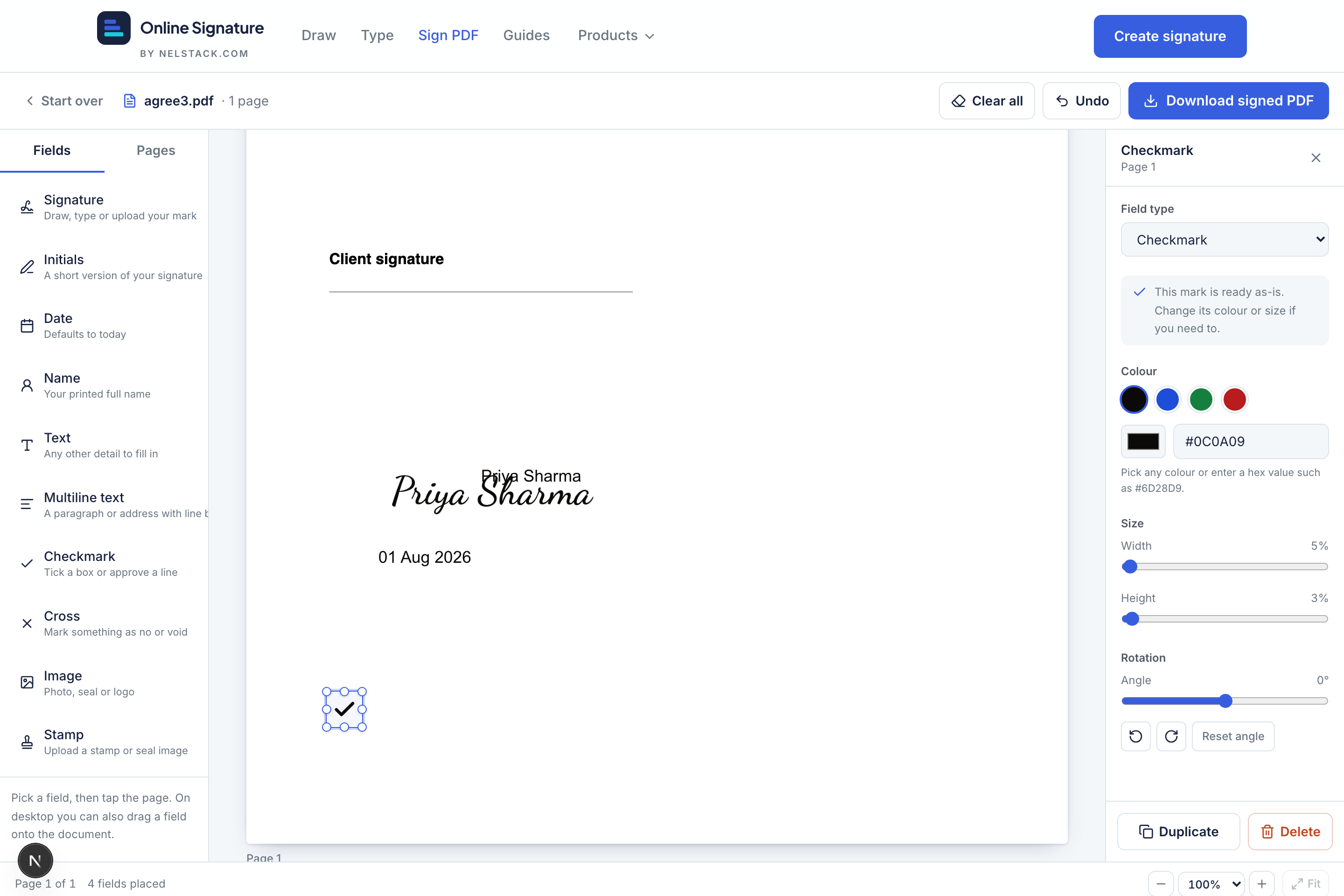
Mix field types freely — each has its own size, colour, font and rotation. - 5
Review like the final PDF
Click empty page space or press Esc to deselect. Fields then look as they will in the download. Select again to keep editing.
- 6
Download the signed PDF
Press Download signed PDF. If anything is incomplete, the banner lists what is missing. On success you reach a finish screen to download again, keep editing, or sign another file.
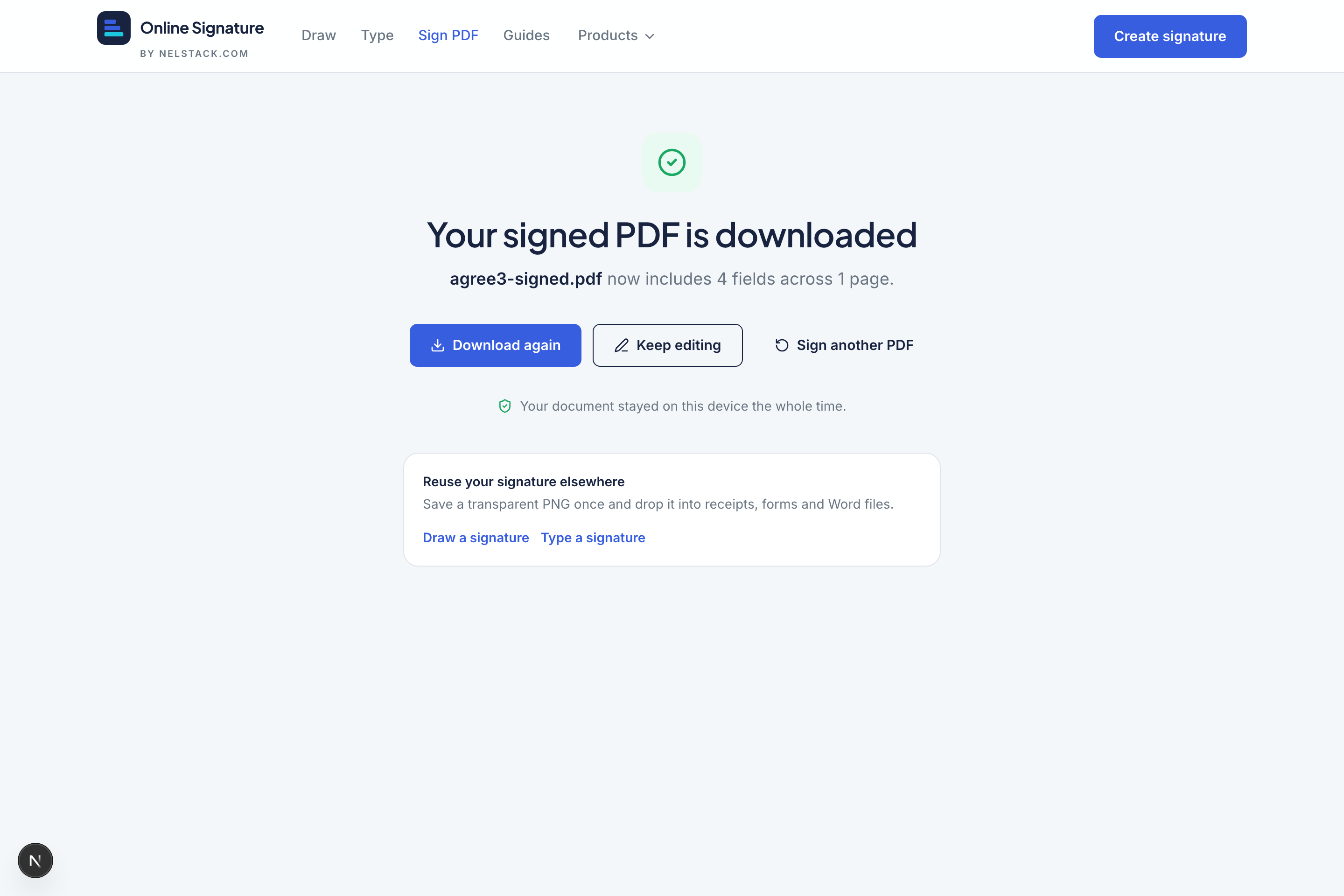
Finish step: download again, return to editing, or start another PDF.
Flattening is permanent
The downloaded file embeds field content into the page. Keep your original PDF if you may need an unsigned copy later.
Go deeper
Field types, the capture modal, and move/resize/rotate shortcuts each have their own tutorial — use them when you need a reference for a specific feature.
Frequently asked questions
What are the PDF limits?
Files up to 15 MB and 30 pages. Larger or longer documents are blocked before processing so your browser stays responsive.
Can I open a password-protected PDF?
Yes. If the file is encrypted, Sign PDF prompts for the password and unlocks it locally in the browser.
Why can’t I download yet?
Download is blocked while any non-mark field is empty (missing signature image or blank text). Fill every field, then try again.
Keep learning
- Sign PDF field types explained (with examples)Documentation for every Sign PDF field: signature, initials, date, name, text, multiline, checkmark, cross, image and stamp — sizes, fonts, colour and examples.
- Capture a signature for PDF: type, draw, upload and saved marksHow the Sign PDF capture modal works: type with 14 fonts, draw on a pad, upload PNG/JPG, and reuse up to six saved signatures stored on your device.
- Move, resize, rotate and edit fields on a PDFMaster Sign PDF placement: drag and drop fields, eight resize handles, rotation, arrow-key nudge, undo, zoom, select/deselect and inline text editing.